
Fields
Fields are the inputs that the customer fills in on the product page.
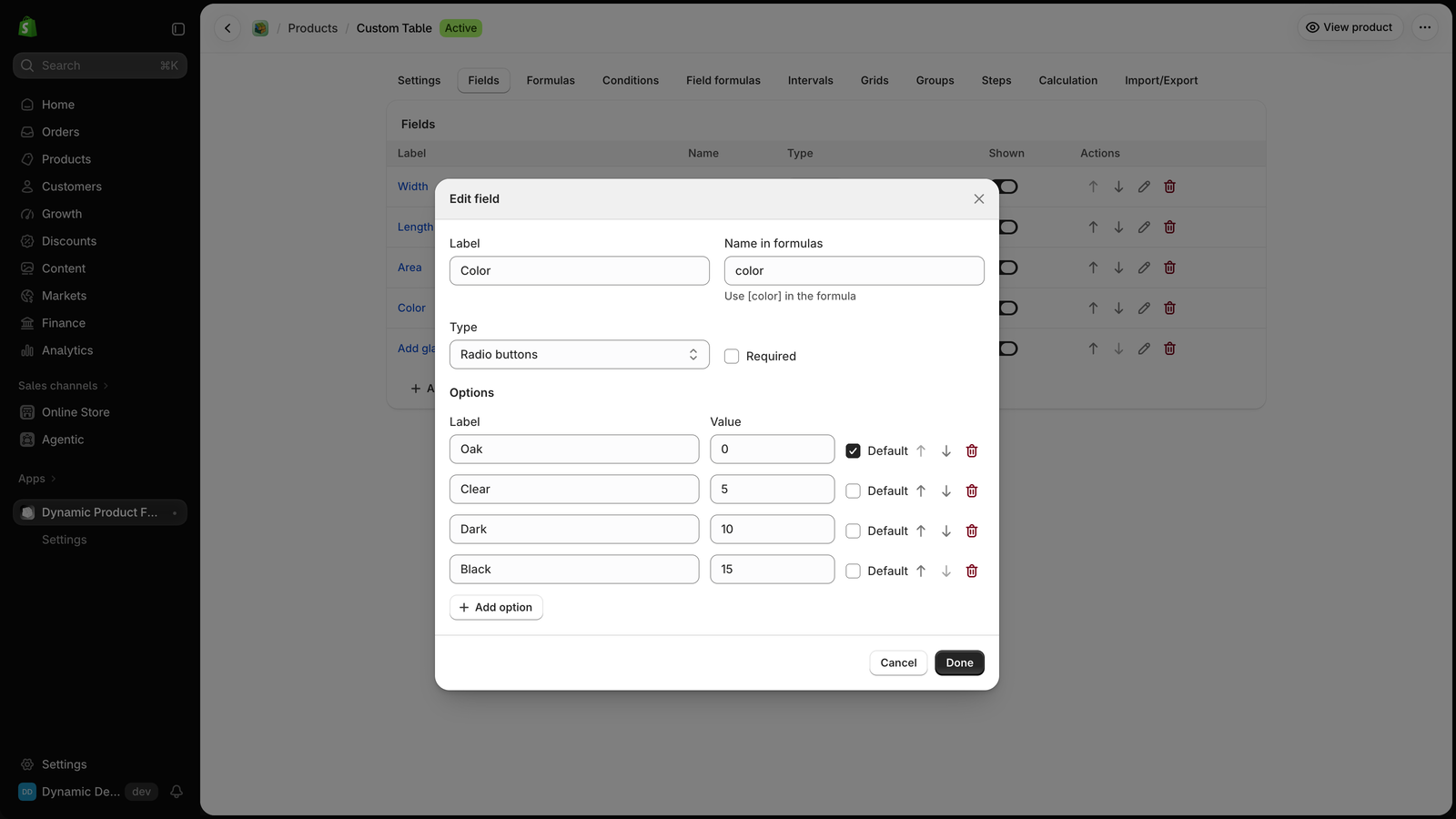
Click Add field to add one. Each field has:
- Label: the text the customer sees.
- Name in formulas: how you use the field in formulas, between brackets. A field named
widthis[width]in a formula. The name is made from the label; you can change it. Use lowercase letters, digits and underscores, starting with a letter (at most 40 characters). - Type: see below.
- Required: the customer must fill it in before adding to cart (not for checkboxes, switches, sliders, color pickers, dynamic variables and information text).
The names quantity, product_price, product_weight and changed are reserved.
In the list, use the arrows to change the order, the switch in the Shown column to hide a field from the product page, the pencil to edit and the bin to delete.
A product can have up to 100 fields.
Field types
| Type | What the customer sees | Value in a formula |
|---|---|---|
| Number | A number box. Optional minimum, maximum, step and unit (for example cm). | The number |
| Dropdown | A list of options. | The value of the selected option |
| Radio buttons | A list of options, one can be chosen. | The value of the selected option |
| Checkbox | A box to tick. | 1 when ticked, 0 when not |
| Switch | An on/off switch. | 1 when on, 0 when off |
| Text | A one-line text box. Optional placeholder, minimum and maximum length. | The text (use quotes) |
| Text area | A multi-line text box. | The text (use quotes) |
| Slider | A slider with a number box. Minimum, maximum and step are required. | The number |
| Date | A date picker. Optional earliest and latest day, in days from today. | The date as DD/MM/YYYY (use quotes) |
| Color picker | A color picker. | The color as #rrggbb (use quotes) |
| Dynamic variable | Read-only text: label and value. | The number |
| Information text | Text or HTML that you write. | No value |
Options
Dropdown and Radio buttons fields have options. Each option has a Label (shown to the customer) and a Value (used in formulas). Tick Default for the option selected when the page opens.
Example: a color field with these options:
| Label | Value |
|---|---|
| Oak | 0 |
| Clear | 5 |
| Dark | 10 |
If the customer selects Dark, [color] * 2 gives 10 * 2.
Option values can be numbers or text. If one value is text, write the field in quotes in formulas: "[color]". Values can't contain quotes, backslashes or square brackets. A field can have up to 200 options.
Dynamic variable
A Dynamic variable holds a value that the app calculates. The customer can't edit it. The product page shows its label and its current value, with its unit.
Set its value with a field formula, then use it in the price formula like any other field.
An interval or a grid can also set it, but only for the price: the product page keeps showing the default value.
Example: an area field with the field formula [area] = [width] * [height] / 10000 shows the area to the customer.
Information text
Shows text on the product page, for example a size guide. HTML is allowed: bold, italic, links, lists, headings, line breaks, images and tables. Scripts and styles are removed. The label is only used in the app. This text is not added to the cart and can't be used in formulas.
Rename and delete
When you rename a field, the app changes its name in the formulas, conditions and other places that use it. Check before saving.
A field that is used in a formula, condition, field formula, interval or grid can't be deleted. Remove it from there first.
In the cart
The customer's choices are added to the cart line, so you see them in the cart, checkout and order. Unticked checkboxes, switches that are off, empty text fields and information text are left out.