
Get started
This guide takes you from installing the app to a working product with a price formula.
1. Install the app
Install Dynamic Product Fields from the Shopify App Store and approve the permissions.
The app opens on the Products page.
Currency
The store currency must use 2 decimals (for example USD, EUR, GBP). With another currency, prices are not shown to customers. The app shows a warning when this is the case.
2. Add the app block to your theme
The fields appear on the product page only when the Dynamic fields block is in your theme.
- In the app, open Settings, then click Add to theme. The theme editor opens on your product page.
- Move the Dynamic fields block where you want it, for example above the Buy buttons.
- Click Save.
To add it by hand: Online Store → Themes → Customize, open a product template, Add block → Apps → Dynamic fields.
Only products that are set up in the app show the fields. Other products are not changed.
Price on the product page
The block finds your theme's price and replaces it with the live price. If it does not find it, set Price element (CSS selector) in the block settings, for example .price__regular.
3. Add a product
- On the Products page, click Add product.
- Pick a product in the Shopify product picker.
A new product starts as Draft: customers don't see the fields yet.
You can also open a product from the Shopify admin: on the product page, open More actions → Edit dynamic fields. The product page in the Shopify admin also shows a Dynamic fields card.
4. Add fields
Open the Fields tab and click Add field. For example:
| Label | Name in formulas | Type |
|---|---|---|
| Width | width | Number |
| Height | height | Number |
5. Write the price formula
Open the Formulas tab and enter:
js
[width] * [height] / 10000 * 25This charges 25 per square meter when width and height are in centimeters.
By default the result is added to the product price (the variant price). You can turn this off in Settings.
6. Test and turn on
- Open the Tester tab, enter some values and click Calculate.
- Open the Settings tab and turn on Active.
- Click Save in the save bar.
The status badge next to the product title shows:
- Draft: Active is off. Customers don't see the fields.
- Not live yet: saved, but not sent to the storefront yet. See Troubleshooting.
- Active: customers see the fields and pay the calculated price.
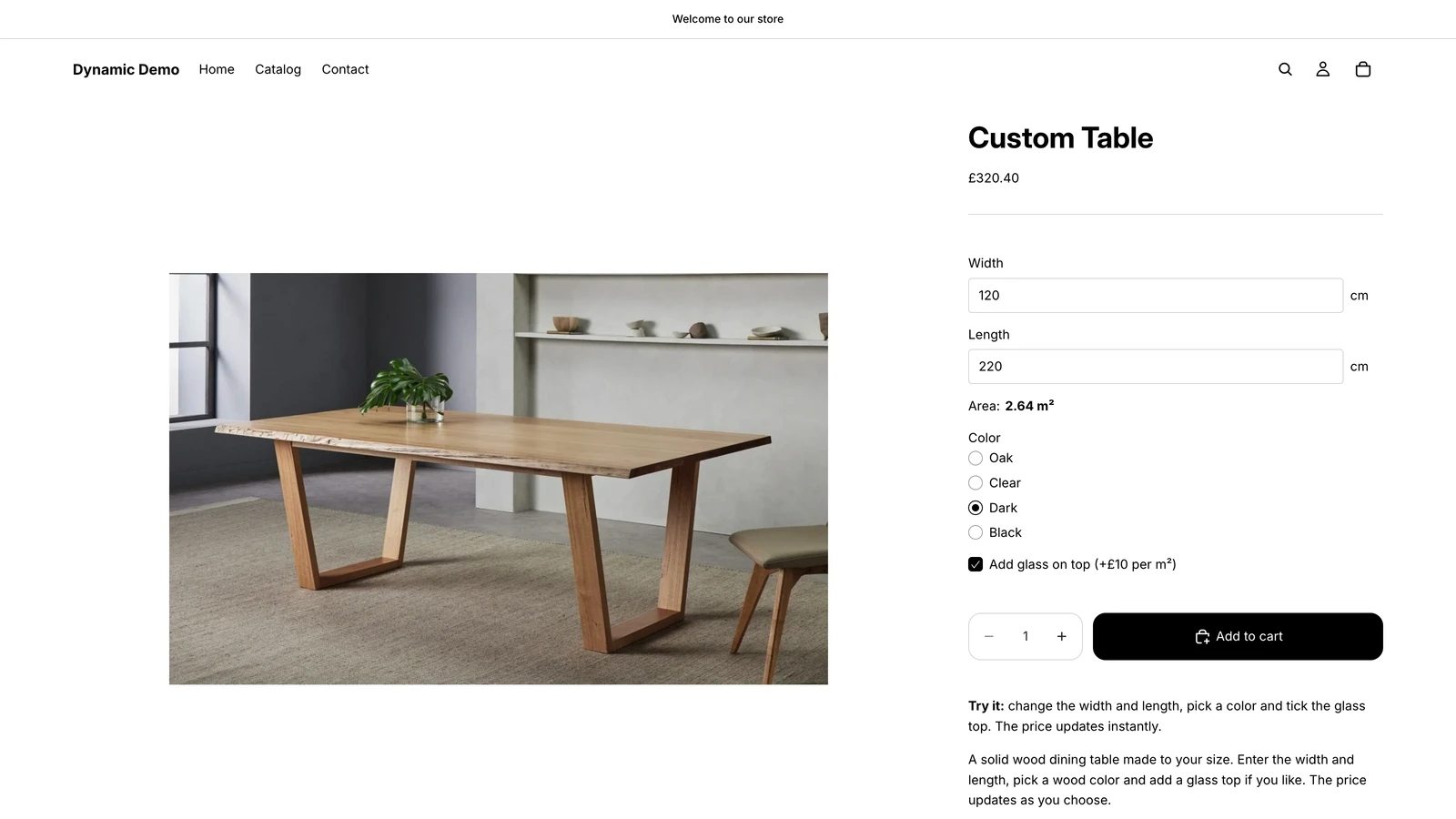
Click View product to open the product on your store.